Advertisement
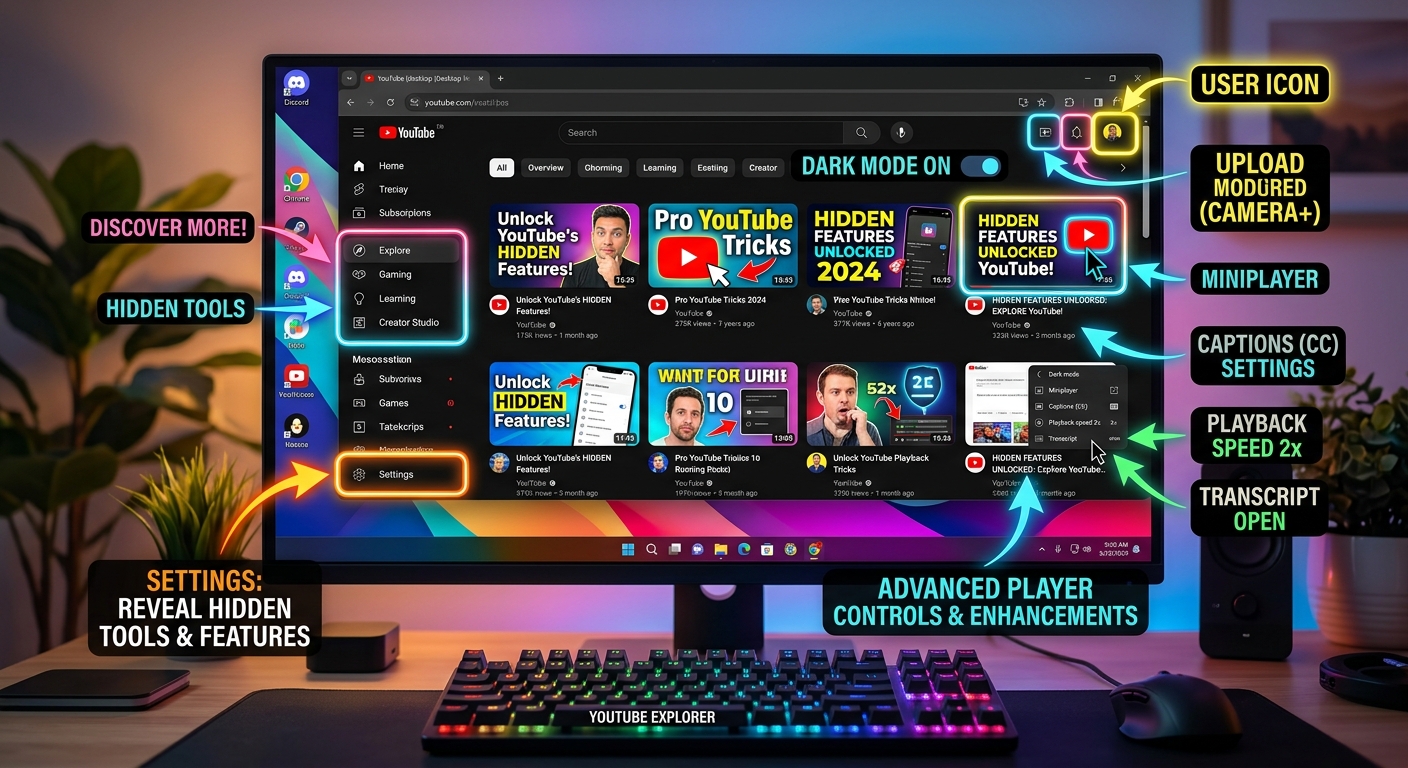
YouTube is a treasure trove of content, yet many of its features remain overlooked by the average user. With a vast array of functionalities, it's easy to stick to the basics and miss out on tools that could enhance your experience. The platform's interface, designed with simplicity in mind, often directs users towards trending content rather than these hidden gems.
For instance, many users are unaware of the ability to customize playback speed, which can be incredibly useful for quickly skimming through tutorials or enjoying content at a pace that suits you. Similarly, the use of subtitles is often neglected, even though it can transform the viewing experience, especially for non-native speakers or those in noisy environments.
These features remain hidden largely due to user habits. Most viewers launch the app, search for a video, and start watching, seldom exploring beyond the immediate options presented. This habit is compounded by the interface design, which prioritizes easy access to popular videos rather than an educational tour of all available features.
Did you know you can control the speed of any YouTube video? This feature is perfect for those who want to slow down a tutorial or speed up a lengthy vlog. To adjust the playback speed, simply click on the gear icon in the video player, select 'Playback speed,' and choose your desired speed—from as slow as 0.25x to twice the normal speed at 2x.
Another overlooked feature is Picture-in-Picture mode, which allows you to continue watching videos in a small floating window while using other apps. This is available on both mobile and desktop versions. For mobile users, simply press the home button while a video is playing to activate it. On desktops, you can right-click twice on the video and select 'Picture-in-Picture.'
Subtitles are another vital feature. Besides the obvious benefit for those with hearing impairments, subtitles can enhance understanding and retention of video content. To enable them, click the 'CC' button at the bottom of the video player. YouTube's AI often provides auto-generated captions when official ones aren't available.

YouTube Studio is a powerful toolset for creators seeking to optimize their content. Its analytics provide deep insights into viewer behavior, helping creators tailor their content to audience preferences. For example, understanding watch times and viewer demographics can guide content topics and publishing schedules.
End screens and annotations are another underused feature that can significantly boost viewer engagement. They allow creators to suggest related videos, encourage subscriptions, and direct traffic to other content, all of which can be set up in the video editor.
For creators interested in live interaction, YouTube's live streaming options offer a dynamic way to engage with audiences. Whether you're hosting a Q&A session or streaming a live event, the platform's tools allow for seamless interaction with viewers through chat and real-time feedback.
Personalization is key to making the most out of YouTube. The platform offers personalized recommendations based on your viewing history, which can be accessed on the homepage. To refine these further, you can manage your watch and search history in the settings menu.
Creating custom playlists is another fantastic way to organize content. Whether you're curating music for a party or collecting tutorials for a project, playlists allow you to group videos for easy access. Simply click 'Save' below any video and choose or create a playlist to add it to.
Channel subscriptions ensure that you never miss content from your favorite creators. By subscribing, new uploads appear on your subscriptions page, and you can opt-in for notifications to be alerted immediately when new videos are published.

Finding specific content on YouTube can be a breeze with advanced search operators. For instance, using 'intitle:[keyword]' will return videos with your keyword in the title, providing more precise results. Pairing this with other operators like 'before:' or 'after:' can narrow down content by its upload date.
Keyboard shortcuts are another way to navigate YouTube more efficiently. Pressing 'K' pauses or plays a video, while 'J' and 'L' rewind or fast forward by 10 seconds, respectively. These shortcuts save time and make for a smoother user experience.
Organizing your YouTube interface can further enhance navigation. Arrange your sidebar to prioritize subscriptions or playlists you often access, and use the 'Library' feature to keep track of your history, likes, and playlists.